

Overview
Auto BCC is a feature that imports emails and contacts into your CRM platform. This works by adding a BCC email address to all outgoing campaign and workflow emails sent from Loops. You can add a BCC email address in your Sending settings page. Be aware that BCCing might not be enough by itself. Some platforms may require you to add the sender email address to an allowlist or for the sender to be a user on your account.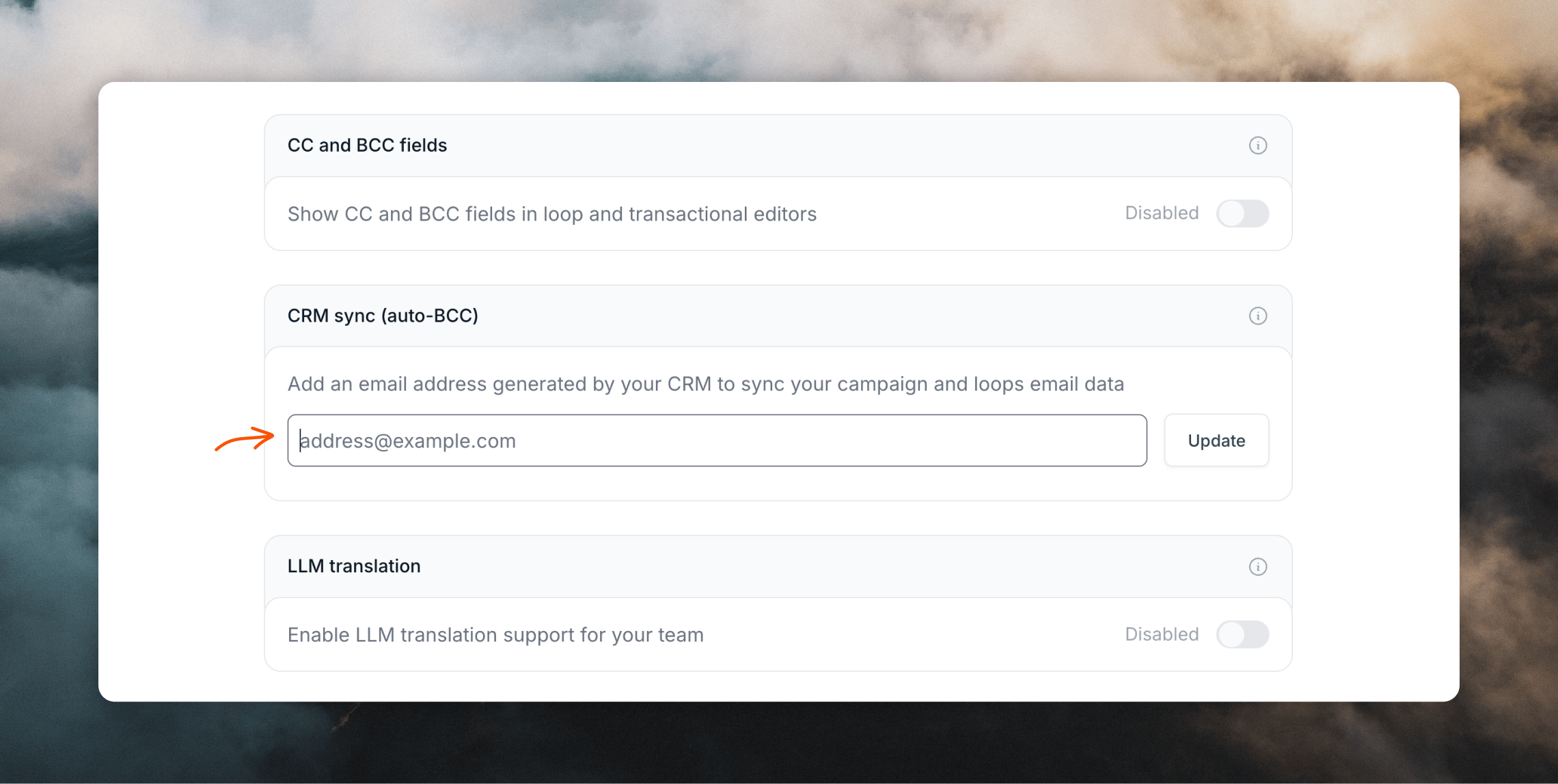
Syncing with Salesforce
You can record all outgoing email and add contacts into Salesforce using a pre-generated Email to Salesforce address. Find your BCC email address and paste it into the BCC email address field in Loops. Read how Email to Salesforce worksSyncing with HubSpot
You can log all outgoing emails and add new contacts to HubSpot using your pre-generated BCC address. Find your BCC email address and paste it into the BCC email address field in Loops.Auto BCC only syncs contacts and outgoing mail from Loops to HubSpot. To
bring existing HubSpot contacts into Loops, export them from HubSpot as a
CSV and import the CSV, or sync them with
Zapier, Make, or the
Loops API.
Syncing with Attio
If you are looking for a full-featured integration with Attio, you can use our Attio app, which allows two-way sync and workflow triggers.