> ## Documentation Index
> Fetch the complete documentation index at: https://loops.so/docs/llms.txt
> Use this file to discover all available pages before exploring further.
# Sections
> Group blocks into reusable sections to structure your email layout.
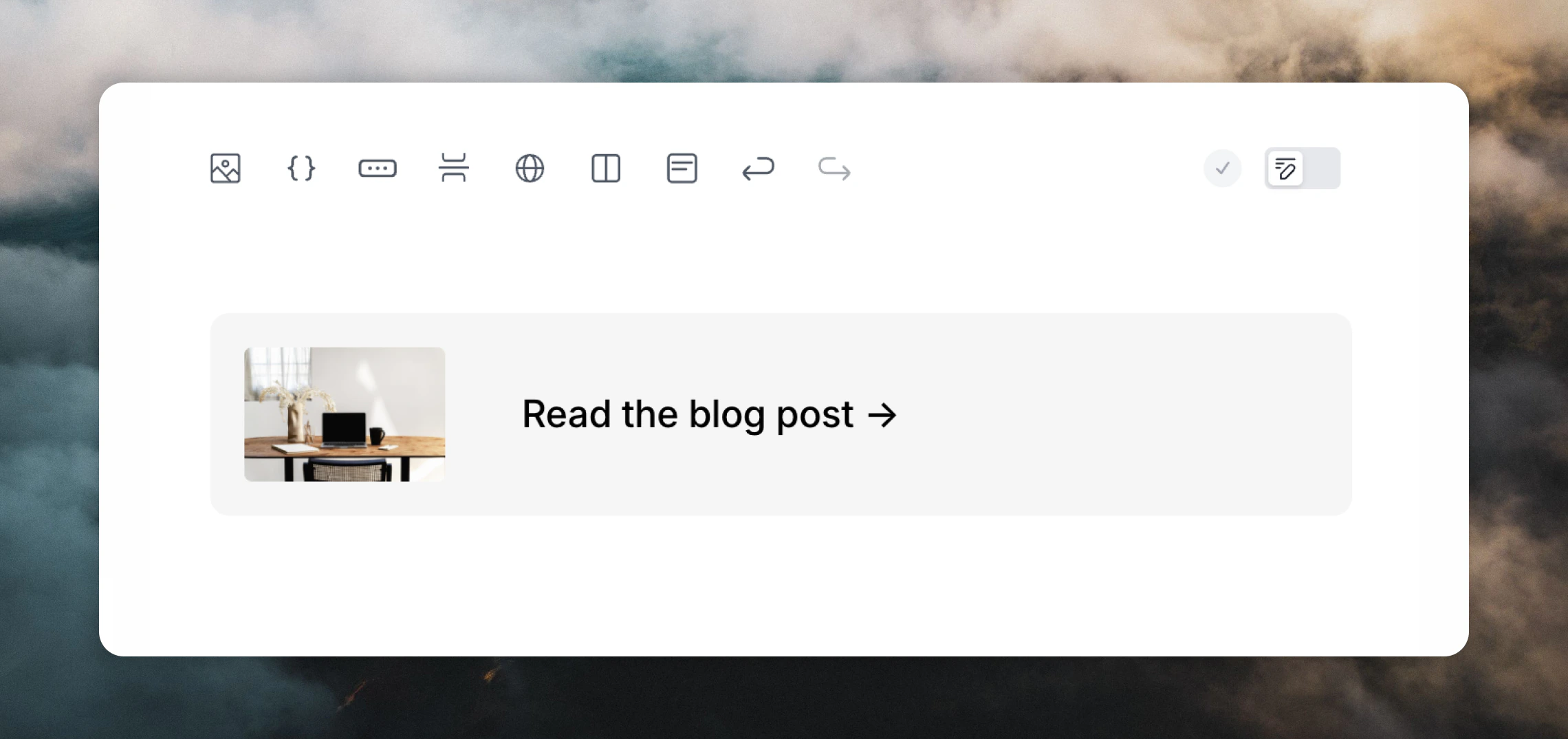
Sections allow you to group blocks together and add styling options to the whole section at once. This makes card-style layouts much easier to build.
 ## Adding sections
Add sections:
* by using the section button in the editor toolbar
* by typing `/` in the editor and selecting **Section**
* by hovering over an existing element in your email and clicking the `+` plus icon on the left and selecting **Section**
Classic Outlook may render extra padding around sections due to its legacy rendering engine.
## Conditional sections
Sections can be shown or hidden for each recipient based on a [contact property](/docs/contacts/properties), [event property](/docs/events/properties), or [data variable](/docs/transactional#add-data-variables) value. This is useful for content that only applies to some people, like a plan-specific callout or a promo banner.
First, add a section to your email, then open the **Condition** panel in the editor sidebar.
## Adding sections
Add sections:
* by using the section button in the editor toolbar
* by typing `/` in the editor and selecting **Section**
* by hovering over an existing element in your email and clicking the `+` plus icon on the left and selecting **Section**
Classic Outlook may render extra padding around sections due to its legacy rendering engine.
## Conditional sections
Sections can be shown or hidden for each recipient based on a [contact property](/docs/contacts/properties), [event property](/docs/events/properties), or [data variable](/docs/transactional#add-data-variables) value. This is useful for content that only applies to some people, like a plan-specific callout or a promo banner.
First, add a section to your email, then open the **Condition** panel in the editor sidebar.
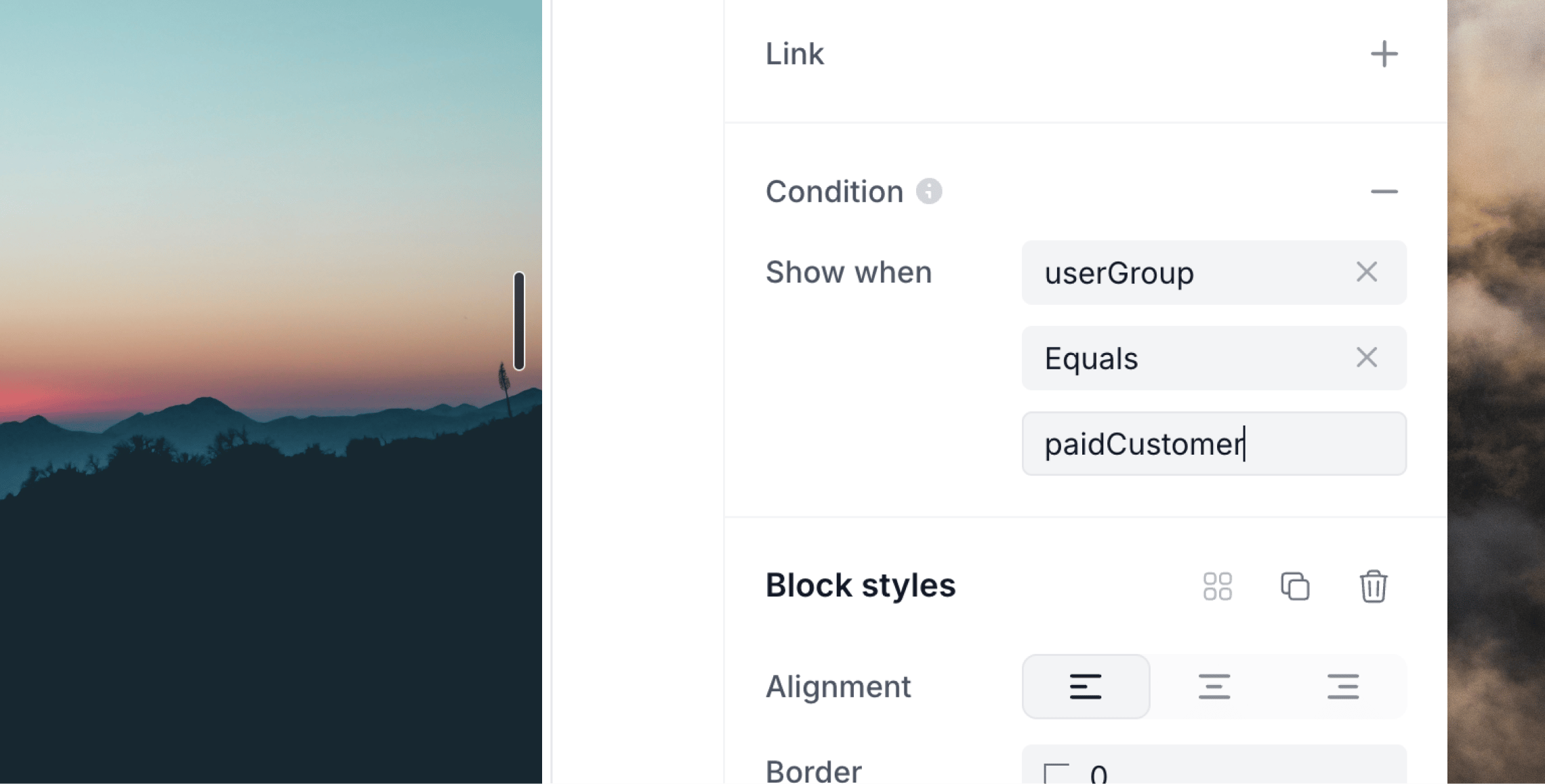 Set **Show when** to build a condition from up to three parts:
1. **Variable** — the field to check:
* In campaigns and workflows, choose a [contact property](/docs/contacts/properties).
* In workflows triggered by events, you can also choose an [event property](/docs/events/properties).
* In [transactional emails](/docs/transactional), type the name of a [data variable](/docs/transactional#add-data-variables).
2. **Operator** — how to compare it (see below).
3. **Value** — what to compare against. Only shown for operators that need one, such as **Equals** or **Contains**.
For example, `email` / **Does not contain** / `loops.so` shows the section only for recipients whose email address does not contain `loops.so`.
Leave **Show when** blank to show the section to every recipient.
In transactional emails, you can create a new variable just for conditional sections, like `showPromo`. The data variable used does not need to be in the email content itself. Any condition-only data variables are accepted in the [Send transactional API call](/docs/api-reference/send-transactional-email) like regular data variables.
### Operators
The available operators depend on the variable's type. Data variables are always treated as text.
| Type | Operators |
| ------- | -------------------------------------------------------------------------- |
| Text | Is not empty, Is empty, Equals, Does not equal, Contains, Does not contain |
| Number | Is not empty, Is empty, Equals, Does not equal, Greater than, Less than |
| Boolean | Is not empty, Is empty, Is true, Is false |
A missing or empty value never fails the send, it just hides the section, so condition variables are optional at send time.
Everything inside a hidden section is removed from the email, including any variables, arrays or links it contains.
Conditions can also be authored in [LMX](/docs/creating-emails/lmx#conditional-sections) with the `if`, `ifOperation`, and `ifValue` attributes.
## Clickable sections
Sections become clickable when you add a link in the **Link** editor panel, which is useful for:
* product cards
* account-summary callouts
* any layout where a section should link somewhere
## Related topics
- [LMX](/docs/creating-emails/lmx.md)
- [Supabase - Sync contacts](/docs/integrations/supabase/contact-sync.md)
- [Webflow integration](/docs/integrations/webflow.md)
- [Setting up your domain](/docs/sending-domain.md)
- [Building your first goal](/docs/goals/building.md)
Set **Show when** to build a condition from up to three parts:
1. **Variable** — the field to check:
* In campaigns and workflows, choose a [contact property](/docs/contacts/properties).
* In workflows triggered by events, you can also choose an [event property](/docs/events/properties).
* In [transactional emails](/docs/transactional), type the name of a [data variable](/docs/transactional#add-data-variables).
2. **Operator** — how to compare it (see below).
3. **Value** — what to compare against. Only shown for operators that need one, such as **Equals** or **Contains**.
For example, `email` / **Does not contain** / `loops.so` shows the section only for recipients whose email address does not contain `loops.so`.
Leave **Show when** blank to show the section to every recipient.
In transactional emails, you can create a new variable just for conditional sections, like `showPromo`. The data variable used does not need to be in the email content itself. Any condition-only data variables are accepted in the [Send transactional API call](/docs/api-reference/send-transactional-email) like regular data variables.
### Operators
The available operators depend on the variable's type. Data variables are always treated as text.
| Type | Operators |
| ------- | -------------------------------------------------------------------------- |
| Text | Is not empty, Is empty, Equals, Does not equal, Contains, Does not contain |
| Number | Is not empty, Is empty, Equals, Does not equal, Greater than, Less than |
| Boolean | Is not empty, Is empty, Is true, Is false |
A missing or empty value never fails the send, it just hides the section, so condition variables are optional at send time.
Everything inside a hidden section is removed from the email, including any variables, arrays or links it contains.
Conditions can also be authored in [LMX](/docs/creating-emails/lmx#conditional-sections) with the `if`, `ifOperation`, and `ifValue` attributes.
## Clickable sections
Sections become clickable when you add a link in the **Link** editor panel, which is useful for:
* product cards
* account-summary callouts
* any layout where a section should link somewhere
## Related topics
- [LMX](/docs/creating-emails/lmx.md)
- [Supabase - Sync contacts](/docs/integrations/supabase/contact-sync.md)
- [Webflow integration](/docs/integrations/webflow.md)
- [Setting up your domain](/docs/sending-domain.md)
- [Building your first goal](/docs/goals/building.md)