> ## Documentation Index
> Fetch the complete documentation index at: https://loops.so/docs/llms.txt
> Use this file to discover all available pages before exploring further.
# Export contacts
> Download CSVs of your contact data.
At any point you can download a CSV file of your audience. This can be your whole audience, or a specific subset of contacts defined by [filters or segments](/docs/contacts/filters-segments).
## Export your audience
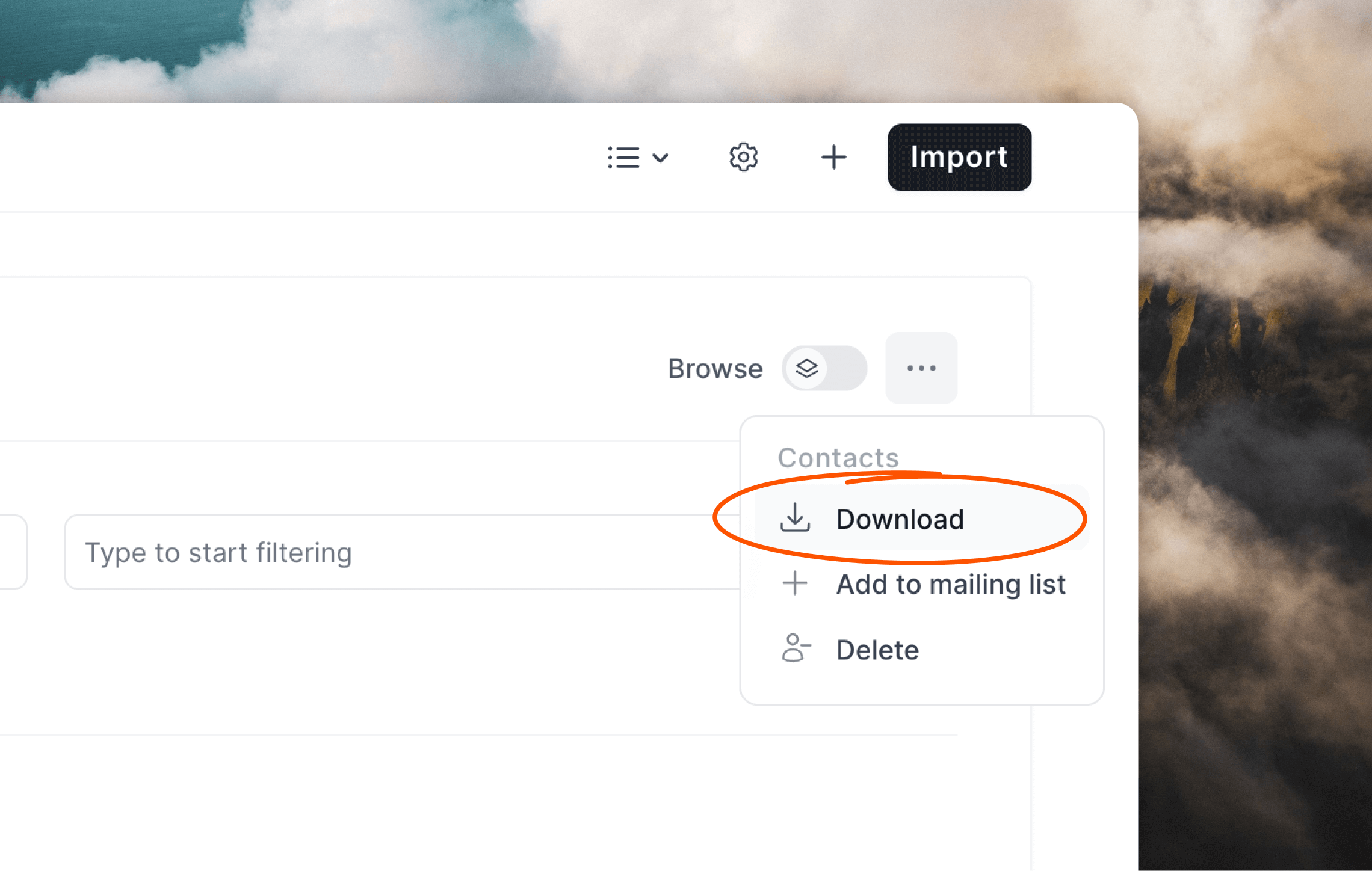
To download a CSV of your audience, click the `•••` menu icon in the top right of the filter box and select **Download**.
 The CSV file will contain columns for each property of your contacts, including [default properties](/docs/contacts/properties#default-contact-properties) plus any [custom properties](/docs/contacts/properties#custom-contact-properties) you've added.
## Using filters and segments
If you want to only export a particular list of contacts or subset of your audience, you can use filters and segments.
Some example exports you can create:
* contacts who have opened a specific campaign
* contacts who were not sent one of your campaigns
* contacts who have clicked a link in one of your workflow emails
* contacts who subscribed after a certain date
* contacts who have a certain domain name in their email address
You can also combine filters to create more complex exports.
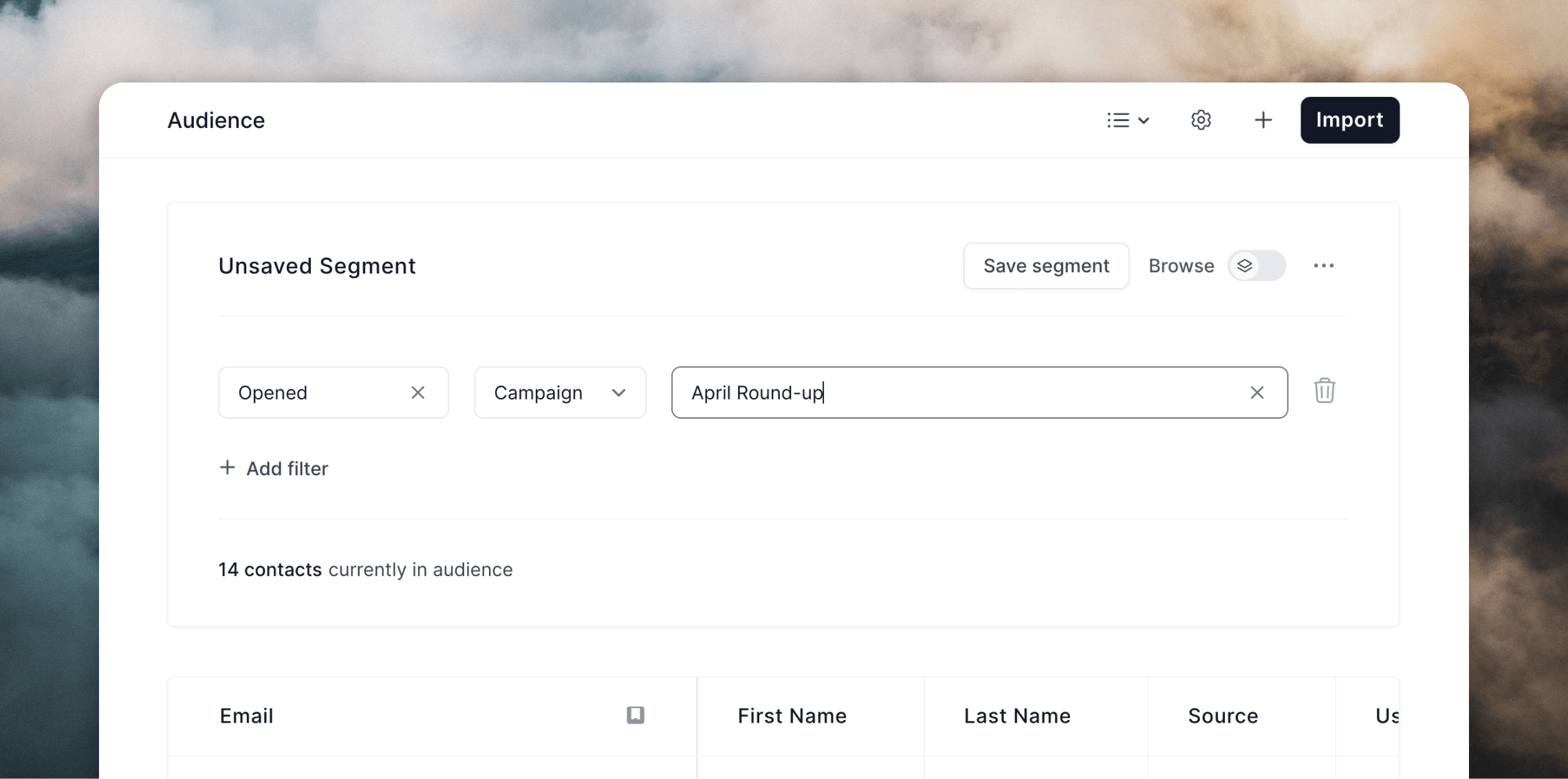
Here's an example of a filter you can use to export all contacts who have opened a specific campaign:
The CSV file will contain columns for each property of your contacts, including [default properties](/docs/contacts/properties#default-contact-properties) plus any [custom properties](/docs/contacts/properties#custom-contact-properties) you've added.
## Using filters and segments
If you want to only export a particular list of contacts or subset of your audience, you can use filters and segments.
Some example exports you can create:
* contacts who have opened a specific campaign
* contacts who were not sent one of your campaigns
* contacts who have clicked a link in one of your workflow emails
* contacts who subscribed after a certain date
* contacts who have a certain domain name in their email address
You can also combine filters to create more complex exports.
Here's an example of a filter you can use to export all contacts who have opened a specific campaign:
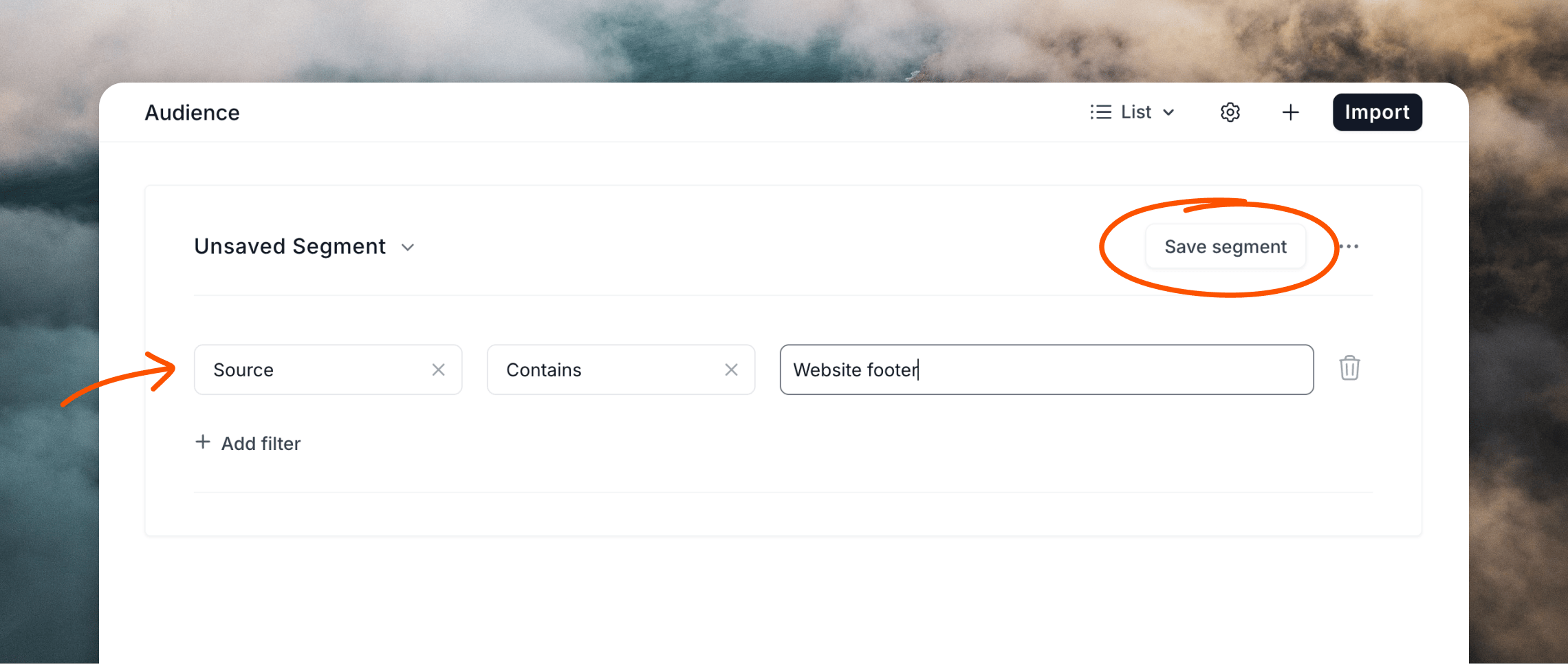
 If you want to save your filters for the future, you can create a [segment](/docs/contacts/filters-segments#audience-segments) by clicking **Save segment**.
 For reusable groups like "opened this campaign" or "not sent this campaign",
save the filtered audience as a segment instead of exporting a one-off CSV.
## Related topics
- [Email open rates](/docs/deliverability/understanding-email-open-rates.md)
- [Uploading a custom email](/docs/creating-emails/uploading-custom-email.md)
- [Retrigger a Workflow](/docs/guides/retroactively-trigger-workflow.md)
- [DMARC and DKIM setup](/docs/deliverability/dmarc-dkim-setup.md)
- [Transactional vs marketing email](/docs/guides/transactional-vs-marketing-email.md)
For reusable groups like "opened this campaign" or "not sent this campaign",
save the filtered audience as a segment instead of exporting a one-off CSV.
## Related topics
- [Email open rates](/docs/deliverability/understanding-email-open-rates.md)
- [Uploading a custom email](/docs/creating-emails/uploading-custom-email.md)
- [Retrigger a Workflow](/docs/guides/retroactively-trigger-workflow.md)
- [DMARC and DKIM setup](/docs/deliverability/dmarc-dkim-setup.md)
- [Transactional vs marketing email](/docs/guides/transactional-vs-marketing-email.md)